![[H]ard|Forum](/styles/hardforum/xenforo/logo_dark.png)

Gilthanis
[H]ard|DCer of the Year - 2014
- Joined
- Jan 29, 2006
- Messages
- 9,052
This is the walk through for installing WhatPulse on a Windows machine.
Go to the url http://whatpulse.org/ref/1120312/
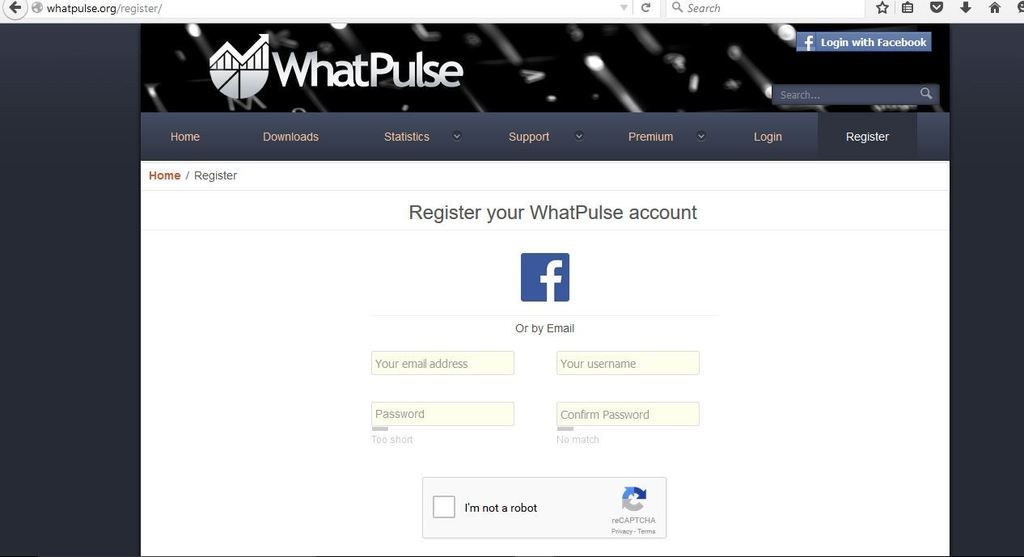
Fill out the required information.
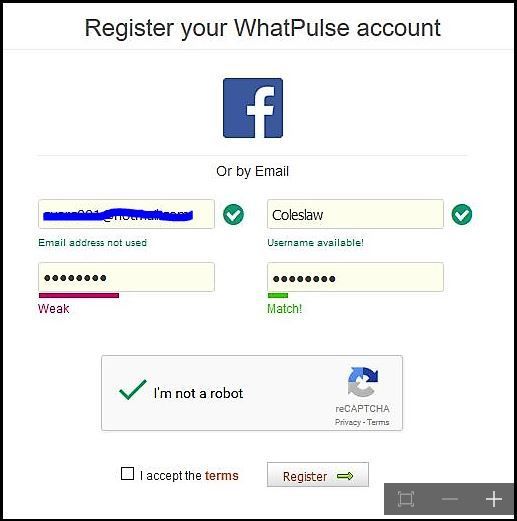
It will ask you to confirm registration by clicking a link in your email.
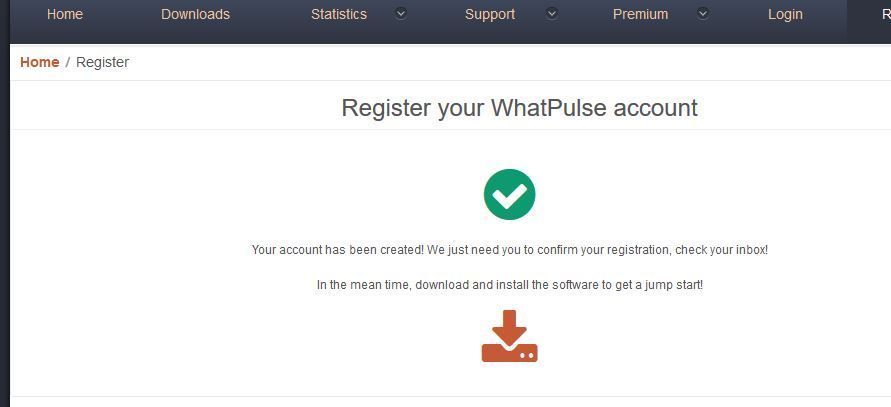
That should be it.
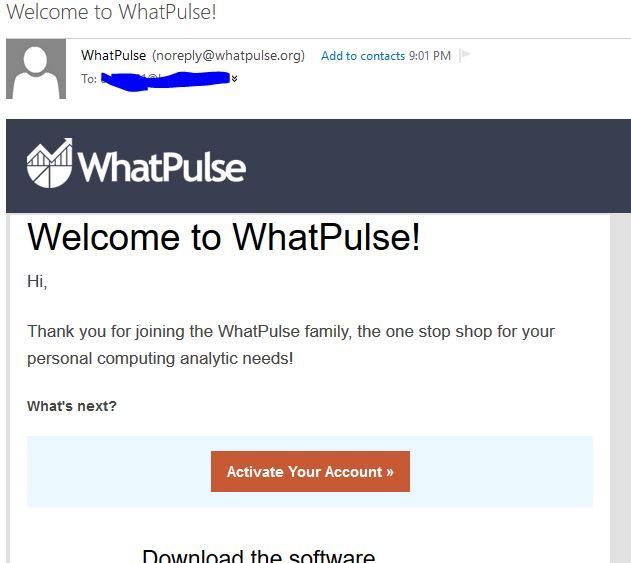
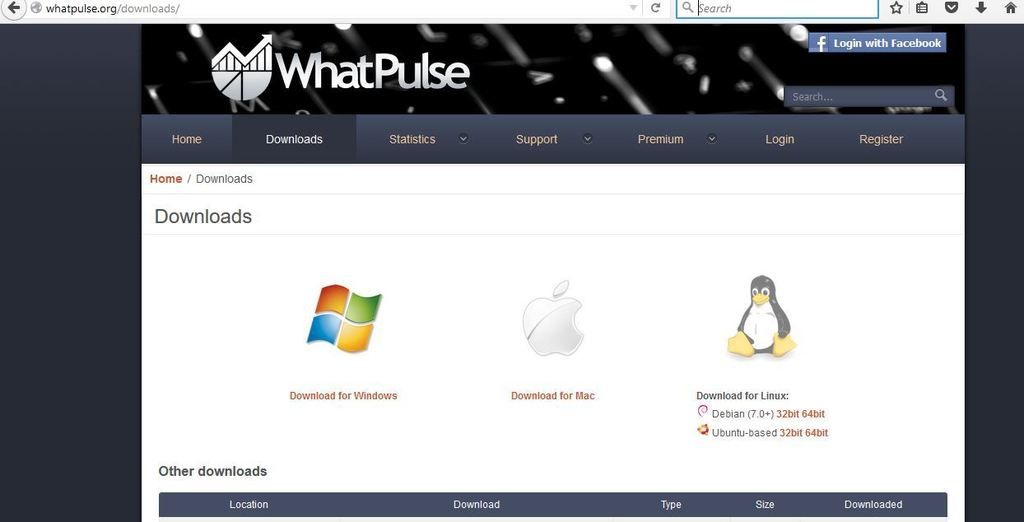
Now that you are registered you will want to download and install the software. Go to the url www.whatpulse.org/downloads/ and download the Windows version.
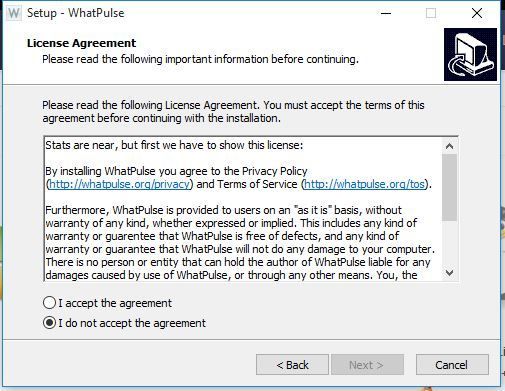
Run the program. Accept the agreement and click next.
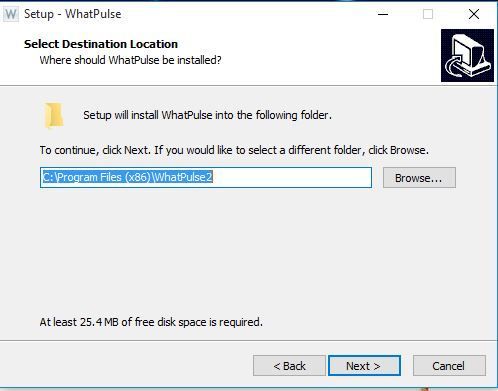
Next
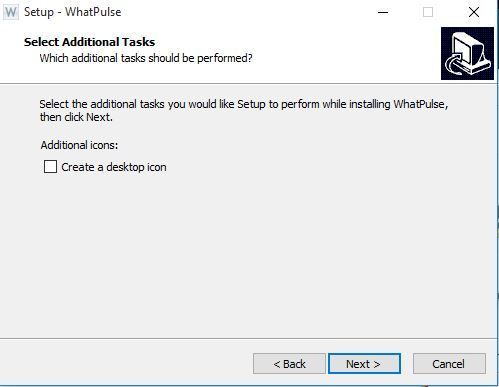
Choose whether you want the desktop icon or not. Click next.
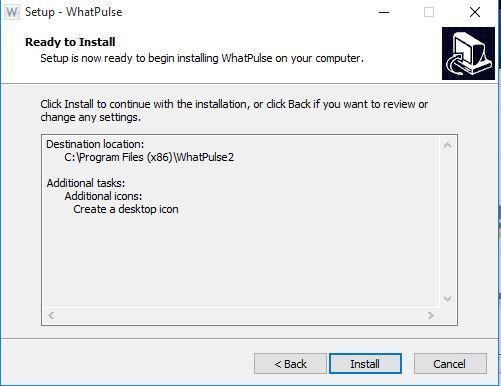
Click install.
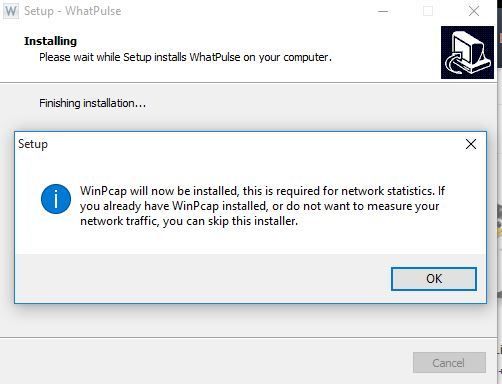
WinPcap will need to be installed as well. The installer will popup automatically. Click OK to begin.
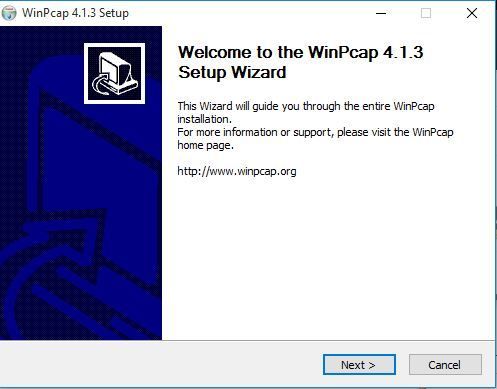
Click Next
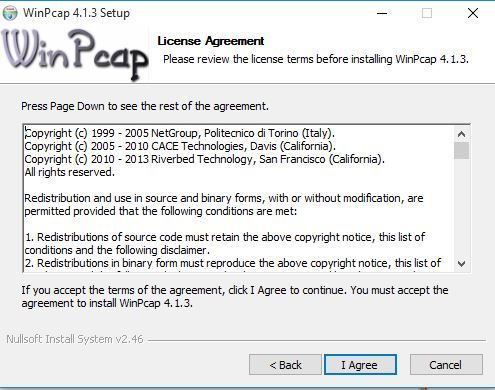
Click I agree.
Choose whether to auto load WinPcap at startup and click Install
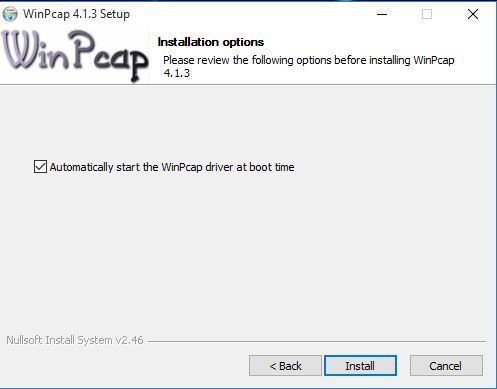
Click Finish
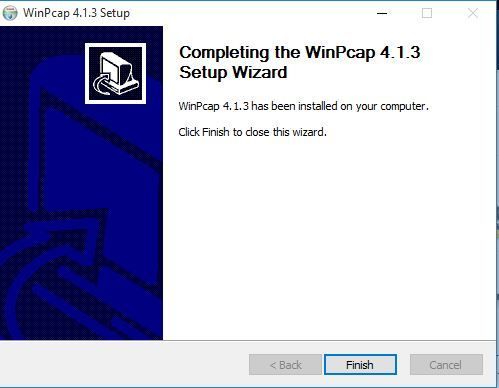
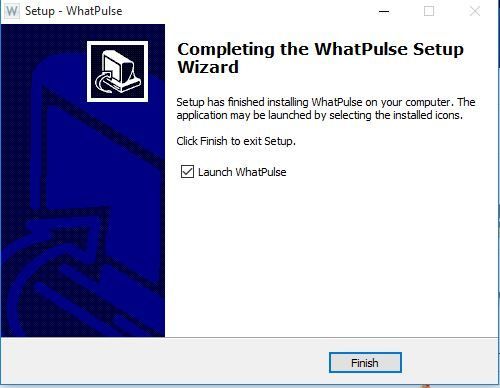
Click finish
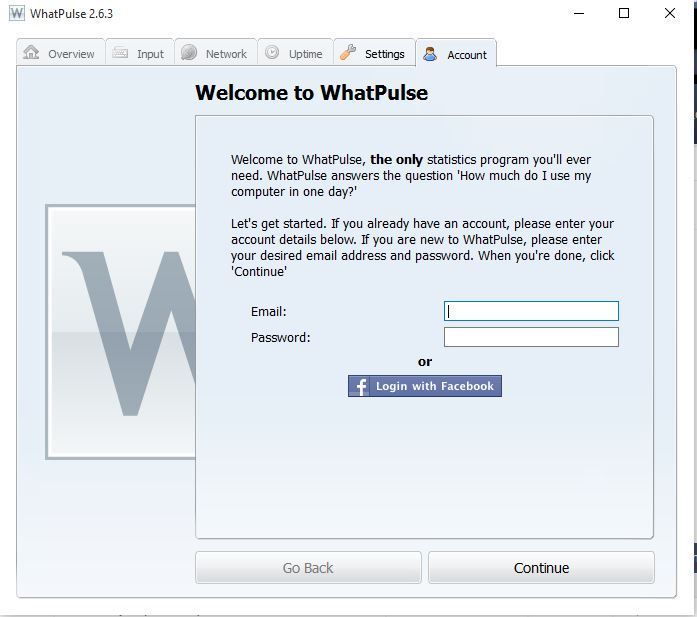
Now enter the login credentials you created during registration. Click continue.
Name your system. click continue
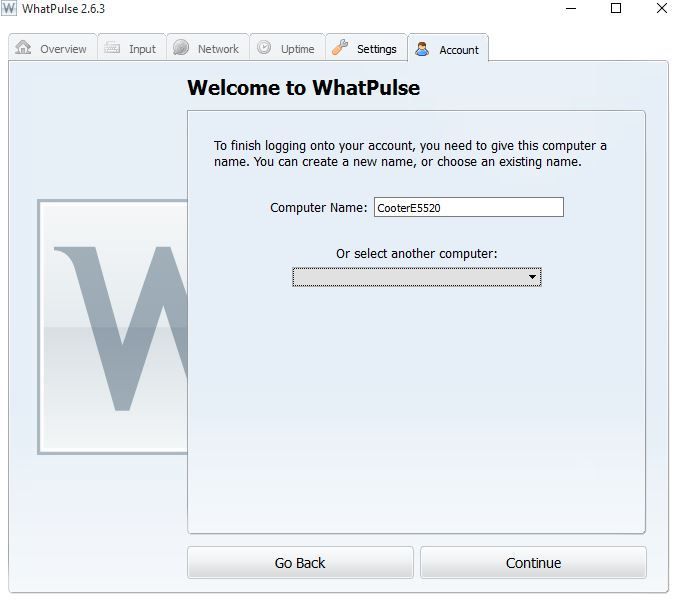
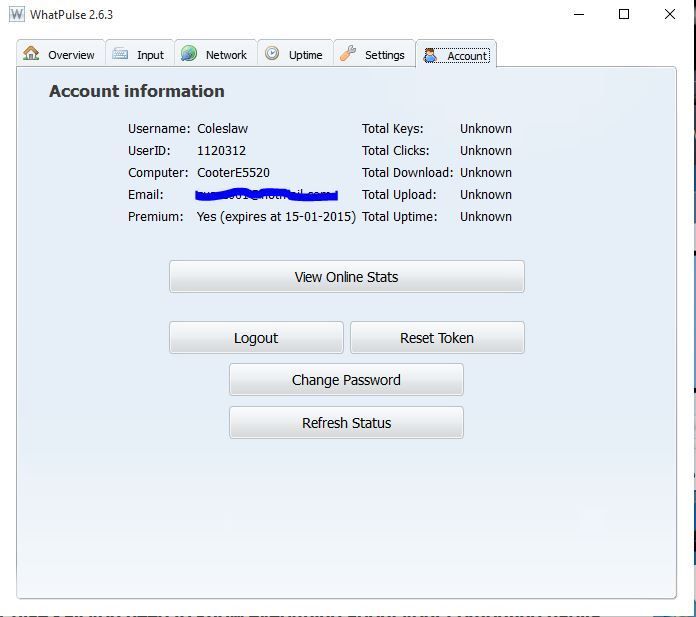
It should bring you to your account page.
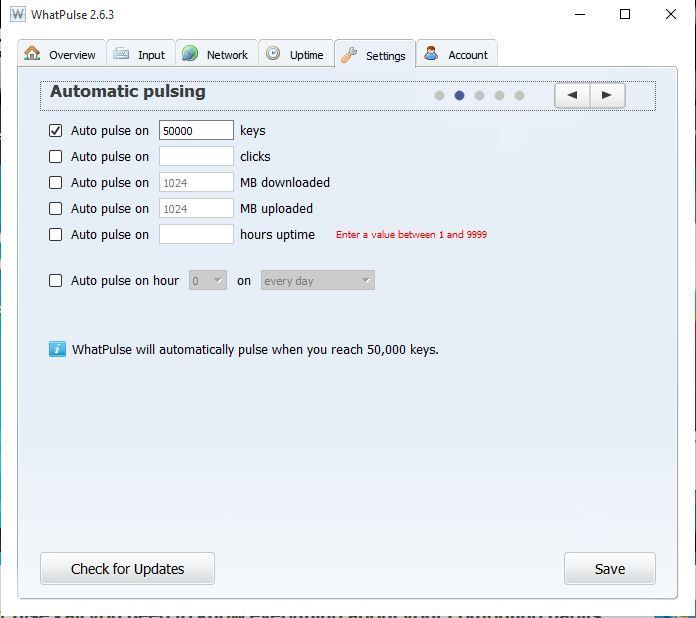
Click the settings tab and choose when you would like to send a "pulse" (this is basically an update) then click save.
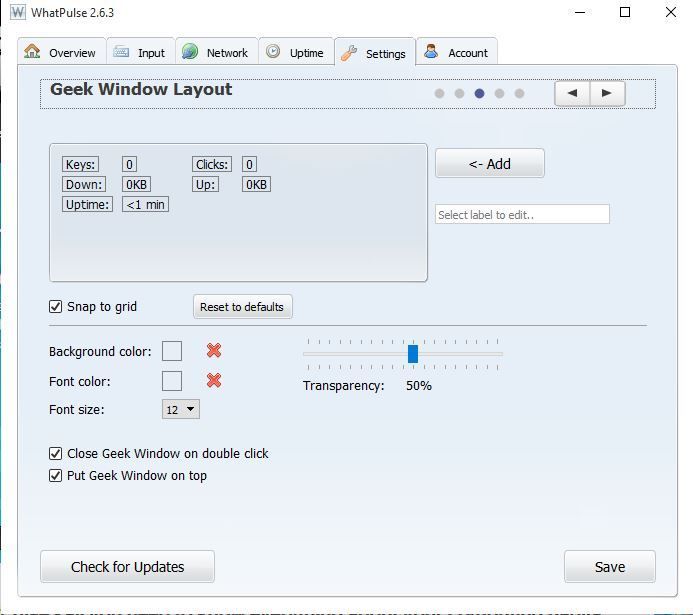
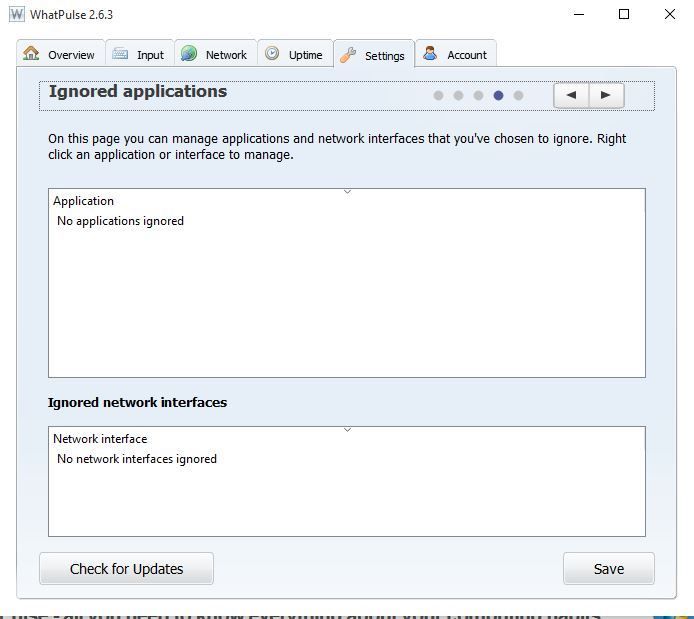
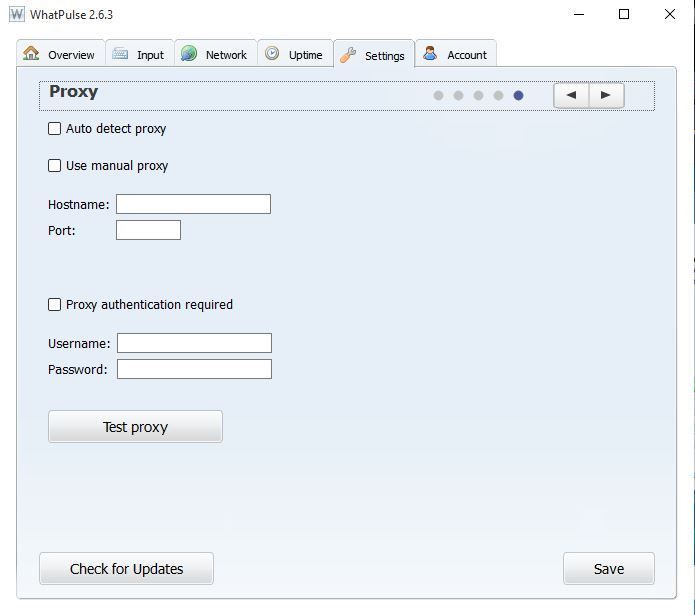
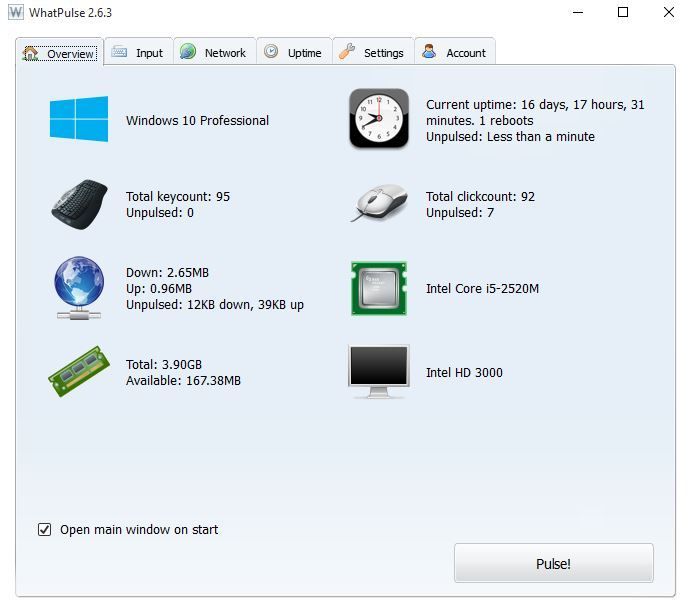
The overview tab gives the systems specs.
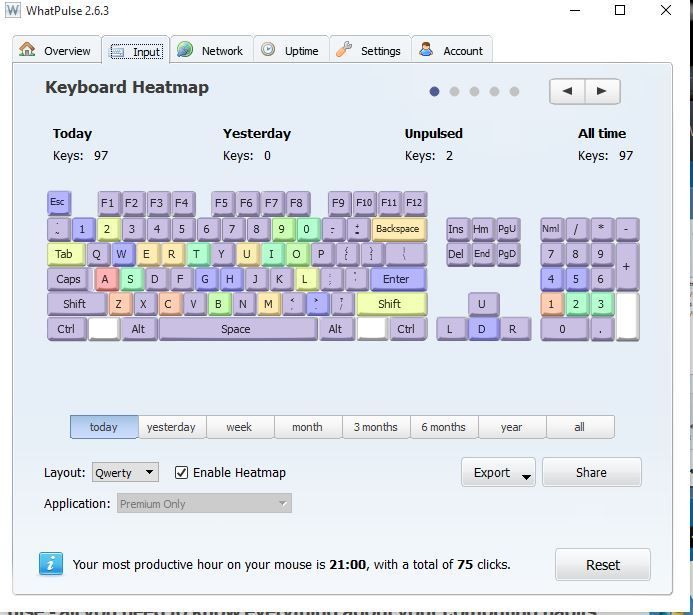
Input tab gives a few options
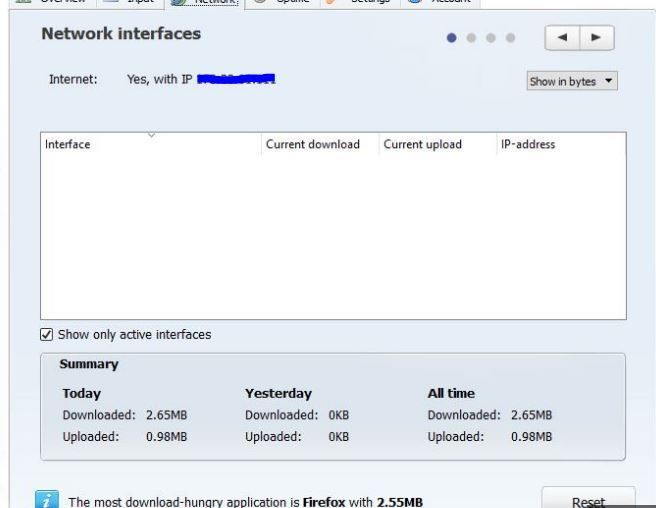
Networking tab
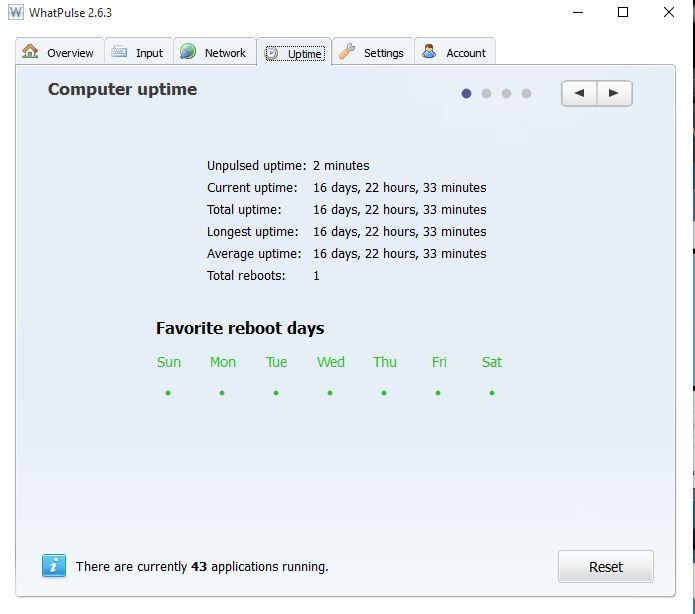
Uptime tab
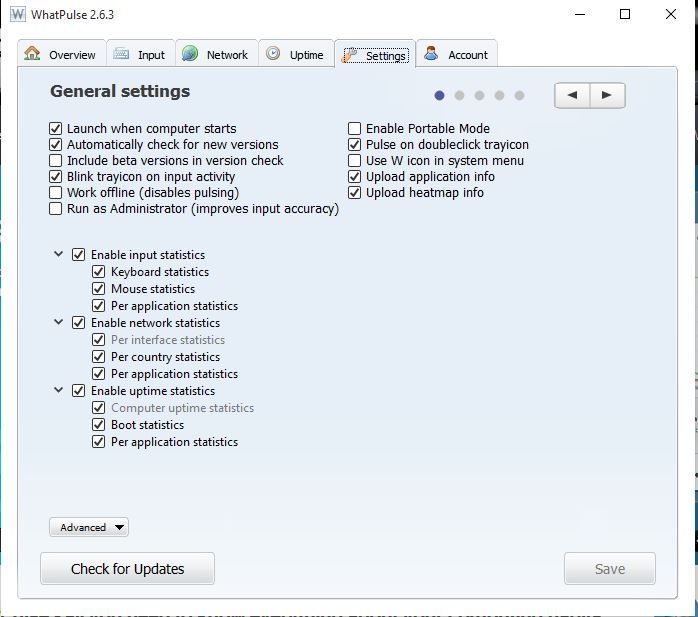
On the settings tab, I recommend selecting run as administrator and then click save
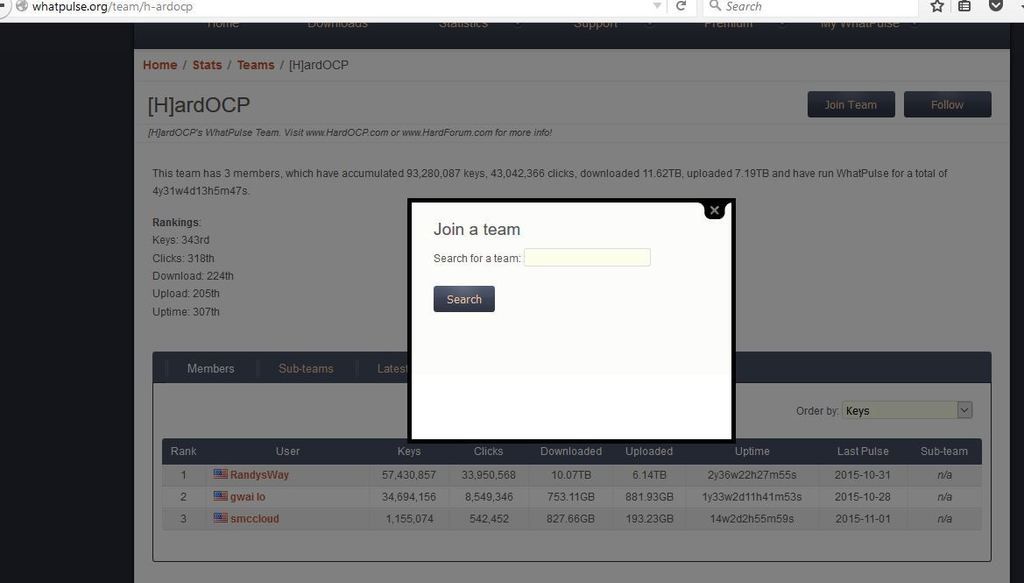
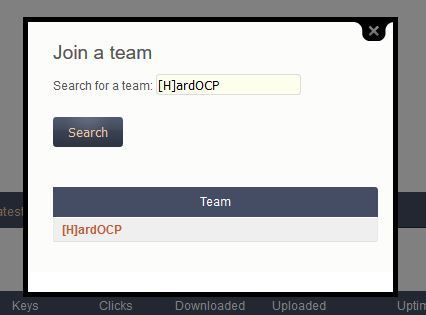
Now, log into the website using the credentials you used during registration. You will want to go to our team's page at http://whatpulse.org/team/h-ardocp and click the link in the top right that says Join Team. You should see a pop up titled Join a team. Just search for [H]ardOCP.
Click on the team name.
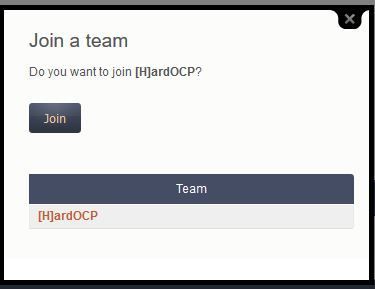
Click Join
You should see a confirmation.
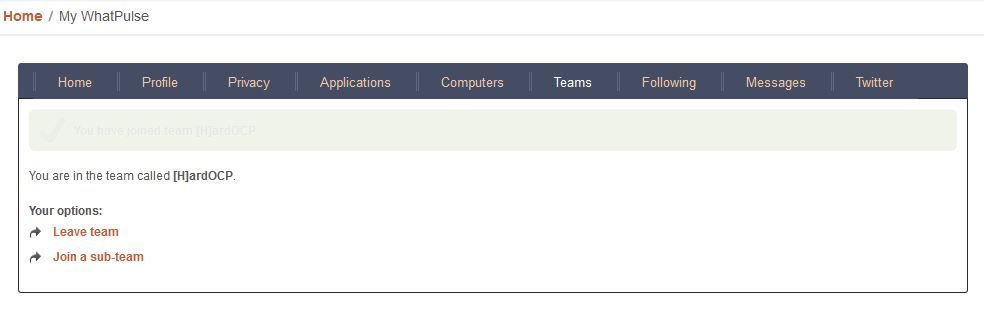
That's it. You should now be participating.
Go to the url http://whatpulse.org/ref/1120312/
Fill out the required information.
It will ask you to confirm registration by clicking a link in your email.
That should be it.
Now that you are registered you will want to download and install the software. Go to the url www.whatpulse.org/downloads/ and download the Windows version.
Run the program. Accept the agreement and click next.
Next
Choose whether you want the desktop icon or not. Click next.
Click install.
WinPcap will need to be installed as well. The installer will popup automatically. Click OK to begin.
Click Next
Click I agree.
Choose whether to auto load WinPcap at startup and click Install
Click Finish
Click finish
Now enter the login credentials you created during registration. Click continue.
Name your system. click continue
It should bring you to your account page.
Click the settings tab and choose when you would like to send a "pulse" (this is basically an update) then click save.
The overview tab gives the systems specs.
Input tab gives a few options
Networking tab
Uptime tab
On the settings tab, I recommend selecting run as administrator and then click save
Now, log into the website using the credentials you used during registration. You will want to go to our team's page at http://whatpulse.org/team/h-ardocp and click the link in the top right that says Join Team. You should see a pop up titled Join a team. Just search for [H]ardOCP.
Click on the team name.
Click Join
You should see a confirmation.
That's it. You should now be participating.
Last edited: